How to Download & Install Sajest on macOS
Step-by-step guide to installing Sajest on Mac — both Apple Silicon and Intel — plus solutions to every common issue including the "damaged app" Gatekeeper warning.
Sajest is a native macOS app built with Electron. This guide walks you through downloading, installing, and troubleshooting on both Apple Silicon (M1/M2/M3) and Intel Macs.
Which version do I need?
| Mac | Chip | Download |
|---|---|---|
| MacBook/iMac from 2020+ | Apple Silicon (M1/M2/M3) | Sajest-arm64.dmg |
| MacBook/iMac from 2019 or earlier | Intel | Sajest.dmg |
Not sure? Click the Apple menu → About This Mac → check the Chip field.
Installation Steps
1. Download the DMG
Go to the Download page and click the button matching your Mac. The .dmg file will save to your Downloads folder.
2. Open the DMG
Double-click the .dmg file. A window opens showing the Sajest app icon.
3. Drag to Applications
Drag the Sajest icon into the Applications folder shortcut in the window.
4. Launch Sajest
Open Finder → Applications → Sajest and double-click to launch.
Common Issues & Fixes
"Sajest is damaged and can't be opened"
This is the most common issue. macOS Gatekeeper blocks apps not signed with an Apple certificate. It does not mean the app is actually damaged.
Fix — Option A (right-click method):
- Right-click (or Control-click) the Sajest app in Applications
- Select Open from the menu
- Click Open in the dialog that appears
Fix — Option B (Terminal):
xattr -cr /Applications/Sajest.app
Then launch normally.
"Sajest cannot be opened because the developer cannot be verified"
Same root cause as above — Gatekeeper blocking an unsigned app.
Fix:
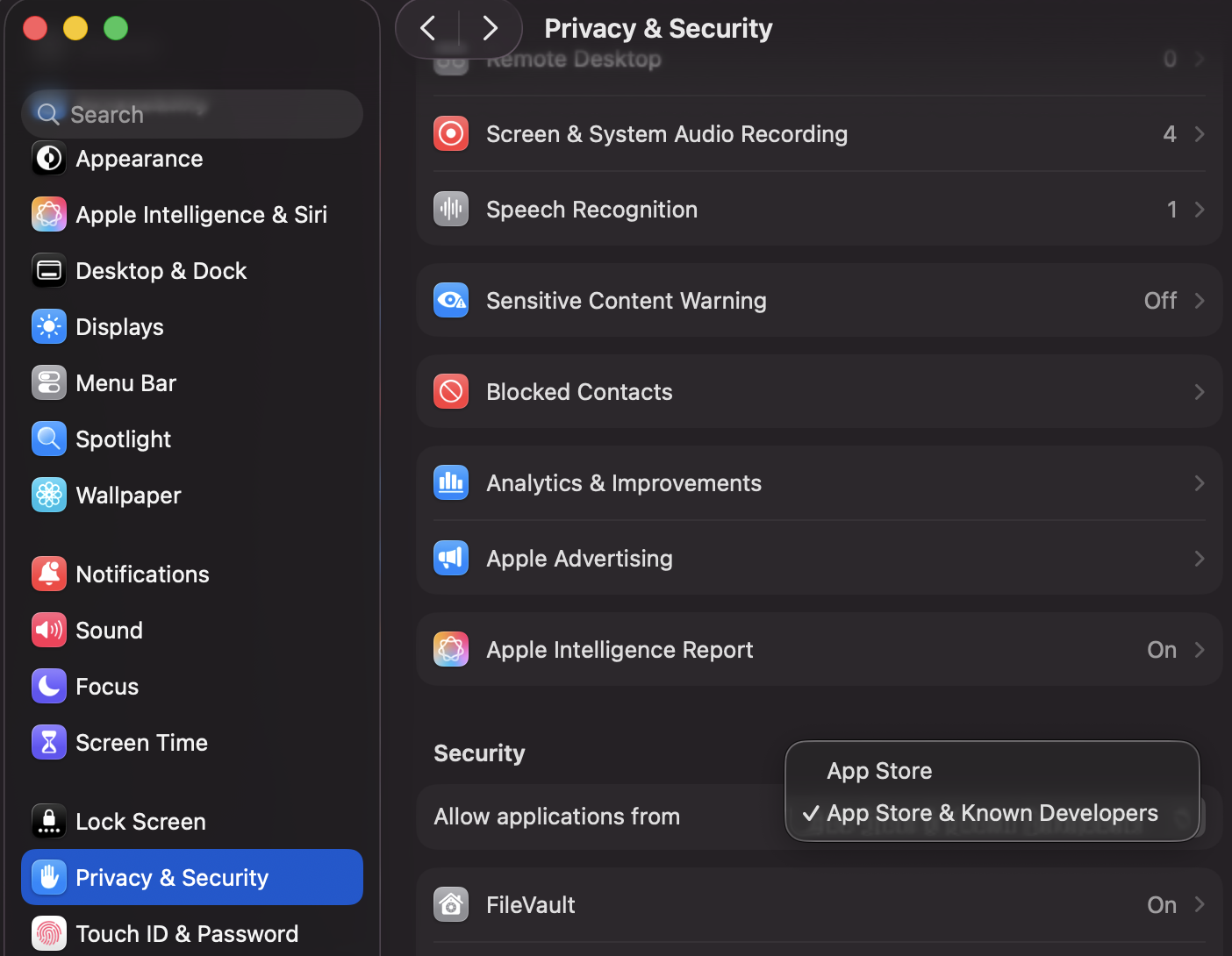
- Go to System Settings → Privacy & Security
- Scroll down to the Security section
- You'll see "Sajest was blocked" — click Open Anyway
Make sure Allow applications from is set to App Store & Known Developers:
App won't launch after install (blank screen or instant quit)
Fix:
- Quit Sajest completely (
Cmd+Q) - Open Terminal and run:
rm -rf ~/Library/Application\ Support/sajest
- Relaunch Sajest
This clears corrupted local data from a previous install.
Wrong architecture (app runs slowly or crashes immediately)
If you installed the Intel version on an Apple Silicon Mac (or vice versa), the app may run through Rosetta 2 or crash.
Fix: Download the correct version from the Download page and reinstall.
Microphone/Screen permission denied
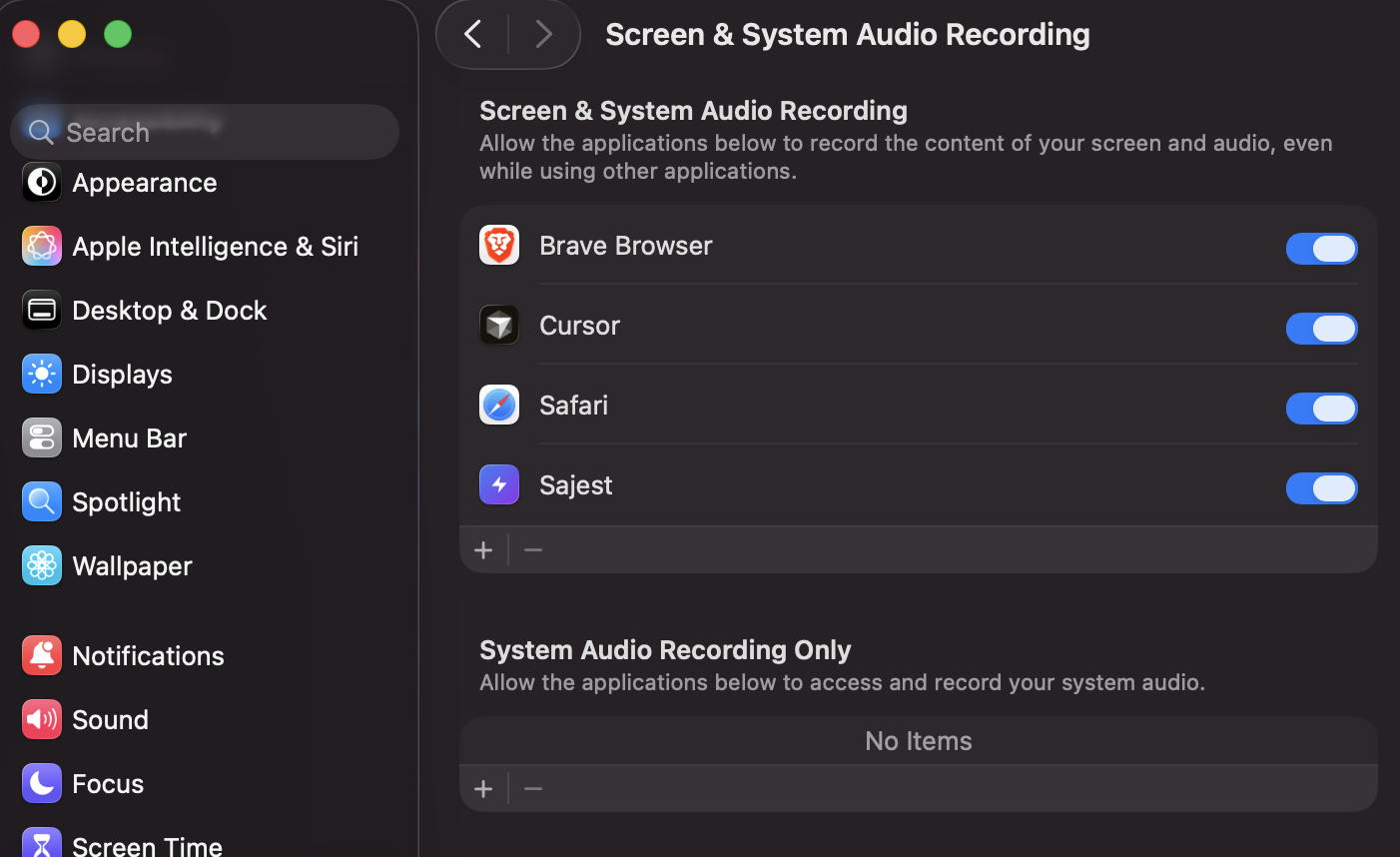
Sajest needs screen recording access to assist during sessions.
Fix:
- Go to System Settings → Privacy & Security → Screen & System Audio Recording
- Enable the toggle for Sajest
- Restart the app
Repeat the same for Microphone if audio capture isn't working.
How to uninstall
- Quit Sajest
- Drag
/Applications/Sajest.appto Bin - Remove app data (optional):
rm -rf ~/Library/Application\ Support/sajest
rm -rf ~/Library/Logs/sajest
Ready to practice with AI assistance during your next session?
Download Sajest free