How to Download & Install Sajest on Windows
Complete installation guide for Sajest on Windows 10 and 11, including SmartScreen warnings, antivirus false positives, and common startup errors.
Sajest ships as a standard Windows NSIS installer (.exe). This guide covers downloading, installing, and fixing every common issue on Windows 10 and 11.
Installation Steps
1. Download the installer
Go to the Download page and click Download for Windows. The file Sajest Setup x.x.x.exe will save to your Downloads folder.
2. Run the installer
Double-click the .exe file. If you see a SmartScreen warning, see the fix below — it's expected for new apps.
3. Choose install location
The installer lets you pick where to install. The default (C:\Users\<you>\AppData\Local\Programs\Sajest) works fine for most users.
4. Launch Sajest
After installation, Sajest opens automatically. You can also find it in the Start menu.
Common Issues & Fixes
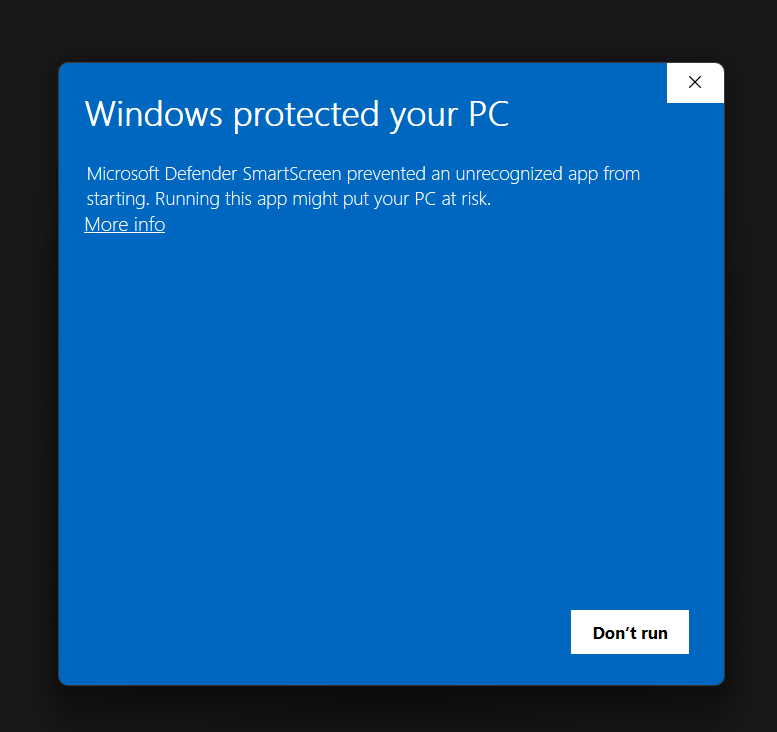
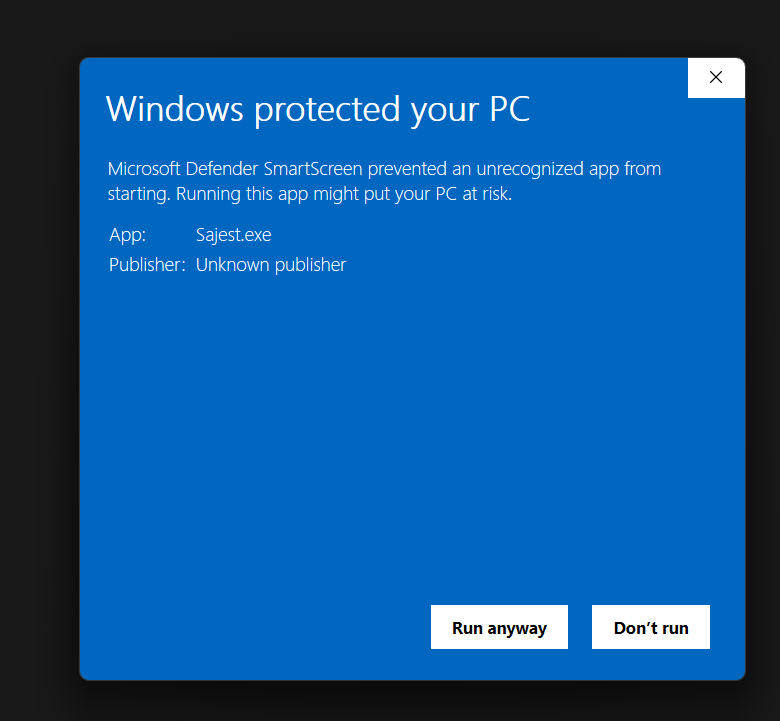
"Windows protected your PC" (SmartScreen warning)
This appears for apps that haven't built up enough download history with Microsoft yet. It does not mean the app is unsafe.
Fix:
- Click More info in the SmartScreen dialog
- Click Run anyway
Antivirus flags the installer as suspicious
Some antivirus programs (Malwarebytes, Avast, Windows Defender) may flag unsigned Electron apps. This is a false positive.
Fix:
- Temporarily disable real-time protection
- Run the installer
- Re-enable protection
- Add Sajest to your antivirus exclusion list:
- Windows Defender: Settings → Virus & threat protection → Exclusions → Add → Folder → select
C:\Users\<you>\AppData\Local\Programs\Sajest
- Windows Defender: Settings → Virus & threat protection → Exclusions → Add → Folder → select
App installs but won't open
Fix 1 — Run as administrator: Right-click the Sajest shortcut → Run as administrator
Fix 2 — Clear app data:
Press Win+R, type:
%APPDATA%\sajest
Delete the folder, then relaunch.
Fix 3 — Reinstall with a clean slate:
- Uninstall Sajest via Settings → Apps
- Delete
%APPDATA%\sajest - Download and reinstall fresh
Blank white screen on launch
Usually caused by a GPU rendering issue with Electron on some Windows setups.
Fix — Disable GPU acceleration:
- Find the Sajest shortcut in Start menu
- Right-click → Properties
- In the Target field, add
--disable-gpuat the end:"C:\...\Sajest.exe" --disable-gpu - Click OK and relaunch via this shortcut
"VCRUNTIME140.dll was not found" error
Missing Visual C++ runtime.
Fix: Download and install the Microsoft Visual C++ Redistributable then relaunch Sajest.
Microphone not working
Fix:
- Go to Settings → Privacy & Security → Microphone
- Make sure Microphone access is On
- Scroll down and enable it for Desktop apps
- Restart Sajest
How to uninstall
Option A — Settings: Settings → Apps → Installed apps → search "Sajest" → Uninstall
Option B — Control Panel: Control Panel → Programs → Uninstall a program → Sajest → Uninstall
To remove all app data:
Press Win+R → type %APPDATA%\sajest → delete the folder.
Ready to practice with AI assistance during your next session?
Download Sajest free