How to Download & Install Sajest on Windows
Step-by-step guide to installing Sajest on Windows 10 and 11, including the "Windows protected your PC" SmartScreen warning, microphone permissions and common startup fixes.
Sajest is a native Windows app for Windows 10 and 11 (64-bit). It installs for your user account only, so you don't need administrator rights. This guide covers downloading, installing and fixing common issues.
Installation Steps
1. Download the installer
Go to the Download section on your Windows PC and click Download & Start Free on Windows. The installer (named like Sajest_<version>_x64-setup.exe) saves to your Downloads folder.
2. Run the installer
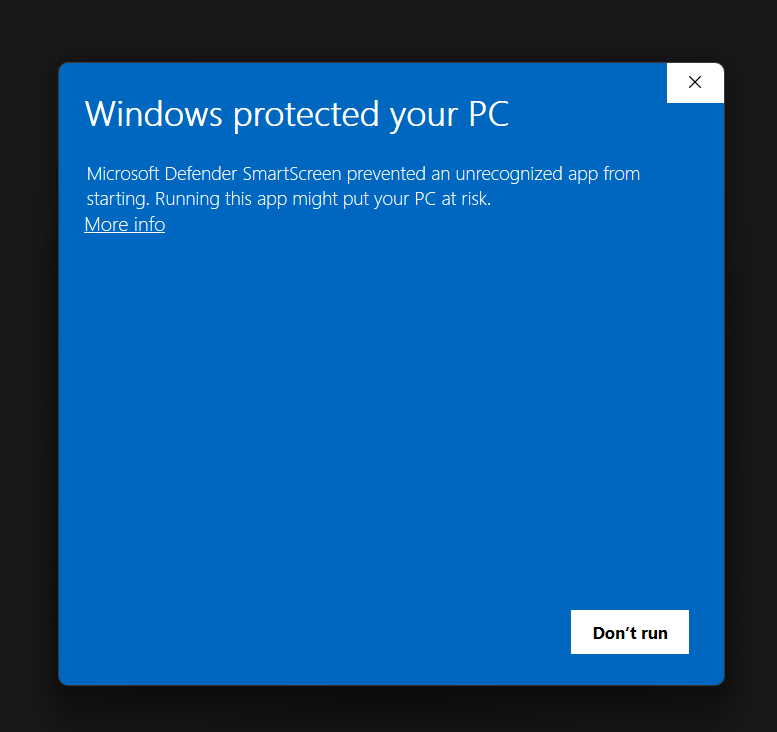
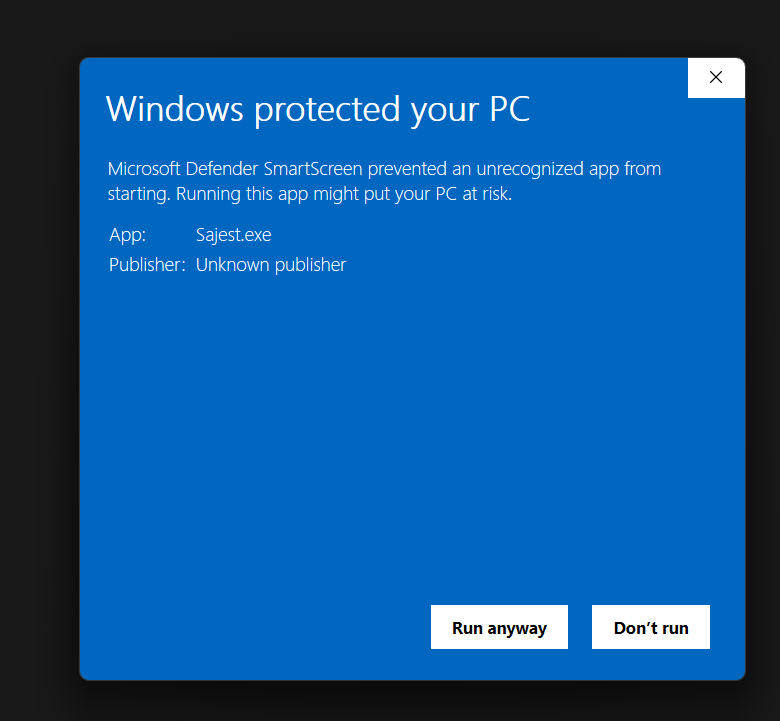
Double-click the .exe file. Windows will probably show a blue "Windows protected your PC" warning. That's expected for new apps; see the fix below.
3. Follow the setup steps
Click through the installer. Sajest installs into your user folder (%LOCALAPPDATA%\Sajest).
If your PC doesn't already have Microsoft Edge WebView2 (almost every Windows 10 and 11 PC does), the installer downloads it automatically. This needs an internet connection.
4. Launch Sajest
Open Sajest from the Start menu, then sign in with Google.
Common Issues & Fixes
"Windows protected your PC" (SmartScreen warning)
Microsoft shows this for apps that haven't built up download history yet. It doesn't mean the app is unsafe.
Fix:
- Click More info in the SmartScreen dialog
- Click Run anyway
Antivirus flags the installer
Some antivirus programs are cautious about new installers they haven't seen before.
Fix: make sure you downloaded the installer from sajest.com. Then allow it in your antivirus, or restore it from quarantine, and run it again. Don't turn your antivirus off entirely.
Microphone not working
Fix:
- Go to Settings → Privacy & security → Microphone
- Make sure Microphone access is on
- Turn on Let desktop apps access your microphone
- Restart Sajest
If the other side of the call isn't being transcribed, check that your call audio is playing through your default output device (your speakers or headphones in Settings → System → Sound). Sajest captures the audio playing on your PC from that device.
App installs but won't open, or shows a blank window
Fix 1: repair WebView2. Sajest draws its window with Microsoft Edge WebView2. Go to Settings → Apps → Installed apps, find Microsoft Edge WebView2 Runtime, then choose Modify → Repair.
Fix 2: reset app data.
- Quit Sajest (right-click its icon in the system tray, if present, and choose Quit)
- Press
Win+R, type%APPDATA%\com.sajest.appand press Enter - Delete that folder, then relaunch Sajest and sign in again
Fix 3: reinstall. Uninstall Sajest (see below), then download and run a fresh installer.
If nothing above works
The exact error message is usually the fastest way to find the right fix.
- Copy the complete error message exactly as it appears. If you cannot copy it, take a screenshot.
- Paste the error into Google inside quotation marks, followed by your Windows version. For example:
"paste the exact error here" Windows 11
- If you still cannot solve it, email support@sajest.com and paste the error or attach the screenshot. Include your Windows version and the step where the problem happened. Logs are in
%LOCALAPPDATA%\com.sajest.app\logs, and attaching them helps.
Avoid sharing passwords, login codes, payment information, or other private data when pasting an error online.
How to uninstall
Go to Settings → Apps → Installed apps, search for Sajest, and choose Uninstall.
To remove all app data too, press Win+R, then delete these folders:
%APPDATA%\com.sajest.app
%LOCALAPPDATA%\com.sajest.app